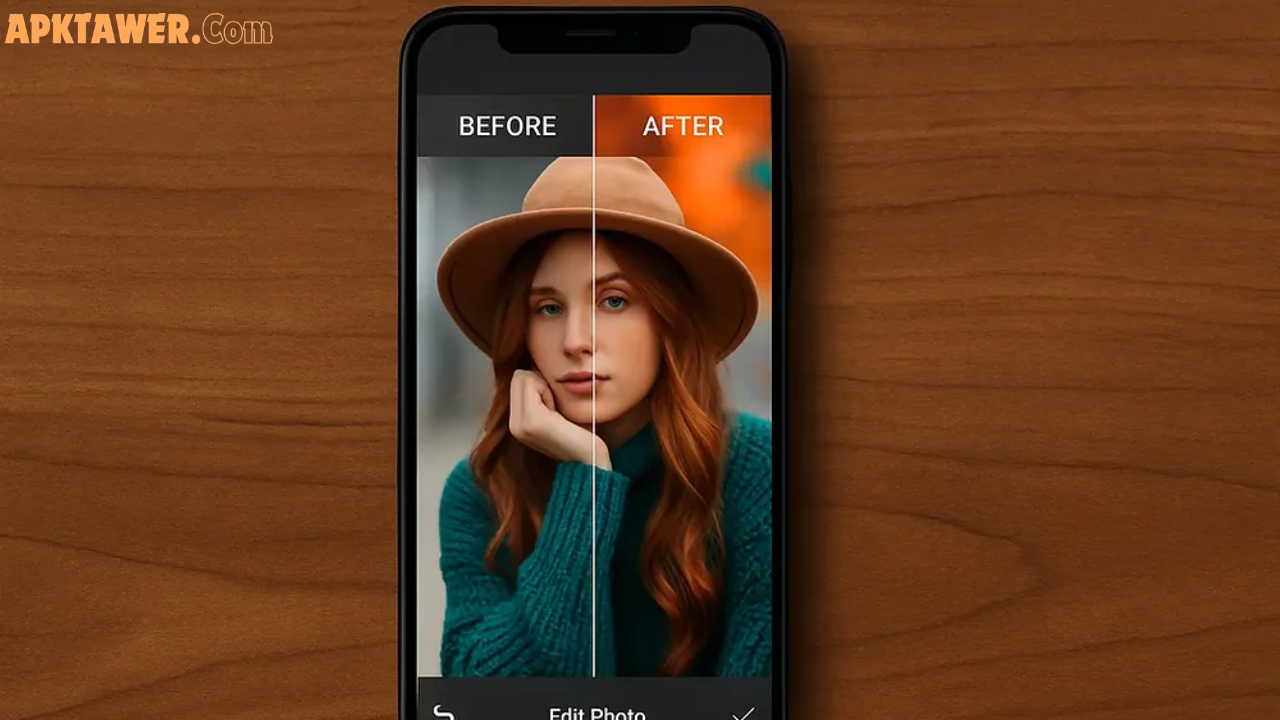

Your photos deserve better than a basic filter. Whether you’re a casual snapper, a content creator, or someone who takes photography seriously, the right app can completely transform what you shoot.
In 2026, Android photo editing has reached an impressive new level. AI tools, RAW support, and professional-grade controls are now available right on your phone — many of them for free.
In this honest review, you’ll learn which apps are actually worth your time, what the real differences are between free and paid options, and how to pick the one that fits your style and workflow best.
What Are Photo Editing Apps for Android?
Photo editing apps for Android are mobile tools that let you adjust, enhance, and transform your images directly from your smartphone.
They range from simple one-tap fix tools to full-featured editors with color grading, masking, layer editing, and AI-powered enhancements. Some are completely free. Others operate on a subscription or one-time purchase model.
The best ones in 2026 now rival what desktop software offered just a few years ago — making mobile editing a genuinely powerful option for creators of all levels.
Key Features to Look For in 2026
Not all editing apps are built the same. Here’s what separates a great app from an average one:
- AI-Powered Tools — Features like subject selection, background removal, object erasing, and smart enhancement using artificial intelligence save time and deliver cleaner results.
- RAW File Support — Essential if you shoot in RAW format for maximum quality. Apps like Lightroom and Snapseed support RAW/DNG editing.
- Non-Destructive Editing — The ability to undo or adjust edits at any time without permanently altering the original file.
- Preset Libraries — Pre-built styles (especially film-inspired) that let you achieve a consistent look quickly.
- Precision Controls — Manual sliders for exposure, highlights, shadows, curves, HSL color mixing, and more.
- Ease of Use — A clean interface matters. Complex tools should still feel approachable.
- Export Quality — Does the app let you save full-resolution images without watermarks or compression?
Best Photo Editing Apps for Android in 2026
1. Snapseed — Best Free App Overall
Price: Completely free (no ads, no watermarks) Best for: Beginners and intermediate editors who want power without paying
Snapseed, developed by Google, remains one of the most impressive free tools available. It offers 29 editing tools including selective adjustments, healing brushes, HDR effects, perspective correction, and full RAW/DNG support — all without charging a single cent.
What makes Snapseed special is its “Stacks” feature, which lets you go back and re-edit any individual step in your workflow. That’s a non-destructive editing approach most free apps simply don’t offer.
If you’re just starting out or need a reliable, no-cost editor, Snapseed is your best starting point.
Standout Feature: Selective adjustment brush — lets you brighten, sharpen, or change color in specific parts of a photo with remarkable precision.
2. Adobe Lightroom Mobile — Best for Professional-Grade Editing
Price: Free (basic), ~$4.99–$9.99/month for premium features Best for: Serious photographers, professional content creators
Lightroom Mobile has long been the gold standard for mobile color grading, and 2026 updates have only strengthened that reputation. Its masking tools let you edit specific areas — just the sky, just a face, just the background — without touching anything else in the frame.
Recent AI additions include Generative Remove (erase objects intelligently), Lens Blur for shallow depth-of-field effects, and a Scene Enhance tool optimized for outdoor photos. The cloud sync across phone, tablet, and desktop remains one of its best practical advantages.
The free tier allows basic edits and DNG support from your phone’s camera. A subscription unlocks RAW processing from external cameras, advanced AI tools, and larger cloud storage.
Standout Feature: Cloud sync — start editing on your phone and finish on your laptop seamlessly.
3. VSCO — Best for Aesthetic and Preset-Driven Editing
Price: Free (10 presets), Plus at $29.99/year, Pro at $59.99/year Best for: Social media creators, lifestyle photographers, anyone building a consistent feed aesthetic
VSCO is famous for its film-inspired preset library. If you’ve ever seen Instagram feeds with that warm, grainy, analog look — there’s a good chance VSCO was involved.
Beyond presets, VSCO offers manual controls for exposure, contrast, grain, fade, and skin tone. Its “Recipes” feature lets you save a chain of adjustments and apply them to future photos in one tap — a massive time-saver for creators who post regularly.
The free plan is genuinely usable, but the best presets require a paid subscription. The community feature (called “Spaces”) is a nice bonus for photographers who enjoy sharing work.
Standout Feature: Preset Recipes — build your signature editing style and apply it consistently across all your photos.
4. PicsArt — Best for Creative and Social Editing
Price: Free (with ads), Gold subscription at ~$4.66/month (billed annually) Best for: Creative editors, social media content, collages, stickers, and design
PicsArt sits at the intersection of photo editor and creative design tool. It features an AI background remover, sticker packs, text overlays, collage builders, drawing tools, and a layer system — all inside one app.
Its AI tools have improved significantly in 2026. You can remove backgrounds, replace skies, apply artistic effects, and even create entirely new visual elements using the built-in AI generator.
The free version is capable, but it includes ads and limits daily saves. Regular creators will find the subscription worthwhile.
Standout Feature: AI object removal and background replacement — especially useful for product photography and social graphics.
5. Adobe Photoshop Express — Best for Fast, Focused Edits
Price: Free (with watermark on some features), full features with Creative Cloud subscription Best for: Quick retouching, defog, spot healing, and basic design
Photoshop Express is designed for speed. It covers the essentials — crop, heal, filters, lighting adjustments, defog, and vignette — in an interface that gets out of your way.
It’s not as deep as Lightroom, but it doesn’t try to be. For quick touchups before posting, it’s one of the fastest and most straightforward options on Android.
Standout Feature: Defog tool — removes haze from outdoor shots that most other apps struggle with.
6. Pixlr — Best Lightweight Editor for Beginners
Price: Free (3 saves/day limit), subscription from ~$1.99/month Best for: Casual editors, beginners, quick social media fixes
Pixlr is a lightweight editor that balances simplicity with a decent feature set. It includes basic adjustments, filters, text tools, and collage features. The interface is clean and approachable for users who find heavier apps overwhelming.
One important note: the free tier limits saves to 3 per day, which can feel restrictive if you edit in batches. For occasional use, though, it’s a practical no-cost option.
Standout Feature: Intuitive interface — the gentlest learning curve of any editor on this list.
Free vs Paid: Honest Comparison
| Feature | Free Apps (Snapseed, Pixlr Free) | Paid Apps (Lightroom, VSCO Pro) |
|---|---|---|
| Basic Adjustments | ✅ Yes | ✅ Yes |
| RAW Editing | ✅ Snapseed only | ✅ Full support |
| AI Tools | Limited | Advanced |
| Watermarks | None (Snapseed) | None |
| Cloud Sync | ❌ No | ✅ Lightroom |
| Preset Library | Limited | Extensive |
| Daily Save Limits | Some (Pixlr) | Unlimited |
| Best For | Casual to intermediate use | Professional and high-volume use |
The honest verdict: Snapseed alone can take you surprisingly far as a free option. But if you’re creating content regularly, the workflow benefits of a paid tool — particularly Lightroom — justify the cost quickly.
Pros and Cons at a Glance
Free Apps
Pros:
- No cost — ideal for hobbyists and casual users
- Snapseed is genuinely professional-grade
- Great starting point with no commitment
Cons:
- Some apps include ads or watermarks
- Save limits can interrupt creative flow
- Advanced AI features often locked behind paywalls
Paid Apps
Pros:
- Deeper tools and AI capabilities
- Unlimited saves, no watermarks
- Cloud sync and cross-device workflow (Lightroom)
- Consistent and professional output
Cons:
- Monthly/annual subscription costs add up
- More complex interfaces with a learning curve
- Some features require external camera hardware to fully utilize
Practical Tips for Getting the Most From Your Editing App
Start with your exposure before anything else. Getting brightness and contrast right first makes every other adjustment easier and more natural.
Use RAW mode if your phone supports it. RAW files give you far more flexibility in post-processing — especially with highlights and shadows.
Build a preset or recipe. Once you find an editing style you like, save it. Consistency is one of the biggest advantages professional-looking feeds have over casual ones.
Edit on a bright, calibrated screen. Your edits will look different across devices. Calibrate your expectations by viewing edits in different lighting conditions.
Less is more. Over-editing — excessive saturation, heavy HDR, aggressive sharpening — is immediately noticeable. Subtle edits nearly always look more professional.
Try multiple apps together. Many creators use Snapseed for precise adjustments, then VSCO for a final preset look. There’s no rule that says you have to use only one app.
Frequently Asked Questions
Which is the best free photo editing app for Android in 2026?
Snapseed is widely considered the top free option. It’s developed by Google, offers 29 professional tools, supports RAW editing, and has zero ads or watermarks — a rare combination for a free app.
Is Adobe Lightroom worth paying for on Android?
For photographers and content creators who edit regularly, yes. Lightroom’s precision controls, masking tools, AI features, and cross-device cloud sync make it one of the most capable mobile editors available. The free tier is useful, but the paid plan unlocks its full potential.
Can I edit RAW photos on Android for free?
Yes. Snapseed supports RAW/DNG editing entirely for free. Lightroom also supports RAW from your phone’s camera on the free plan, though editing RAW from professional cameras requires a subscription.
What’s the difference between VSCO and Lightroom?
VSCO is built around preset-driven, aesthetic editing — it’s ideal for achieving a consistent visual style quickly. Lightroom offers deeper manual controls, masking, cloud sync, and AI tools, making it better suited for technical, precise editing. Many creators use both.
Are photo editing apps safe for AdSense-monetized content?
Absolutely. The apps listed here are all legitimate, commercially available tools from reputable companies. Using them to enhance images for blogs or YouTube thumbnails is completely standard practice.
Conclusion
In 2026, there’s no shortage of excellent photo editing apps for Android — and the gap between free and paid has narrowed significantly. Snapseed remains the undisputed champion for free editing, while Adobe Lightroom leads the paid category for users who want professional-grade control and workflow flexibility. VSCO is the go-to for aesthetic consistency, and PicsArt excels when creativity and social content are the priority.
The right app isn’t the most expensive one — it’s the one that fits how you actually work.
Start with Snapseed if you’re just beginning. Upgrade to Lightroom or VSCO when your workflow demands more. And don’t be afraid to combine apps to get exactly the result you’re looking for.
Explore these tools, experiment with your style, and get started on the photos you’ve been meaning to take.