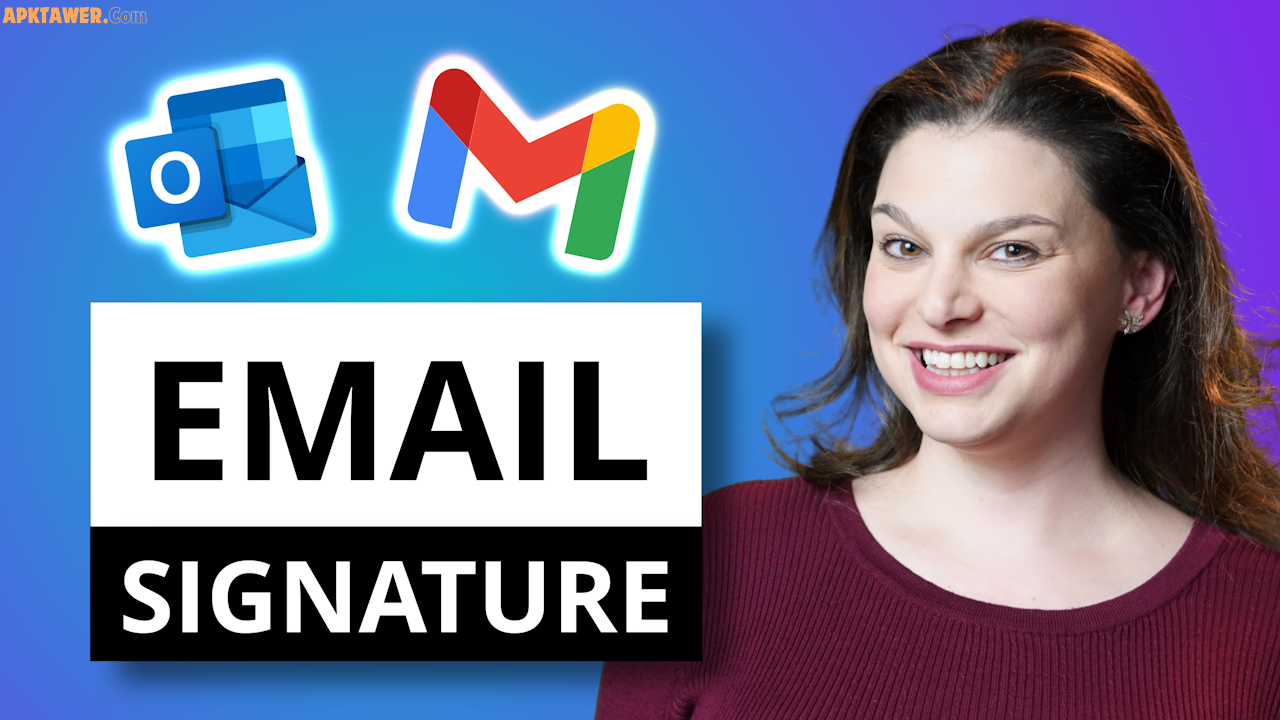

Your email signature is often the last thing people see in your messages—but it can leave the strongest impression. In a world where we send dozens of emails daily, a clean, professional signature acts like a digital business card. It shares your contact details, reinforces your brand, and even turns casual replies into opportunities.
In this guide, you’ll discover exactly what makes a signature stand out, the key elements to include, practical ways to build one (with or without tools), and pro tips to make it mobile-friendly and effective. Whether you’re a freelancer, small business owner, or part of a large team, you’ll walk away with a signature that looks sharp and works seamlessly across Gmail, Outlook, and more.
What Is a Professional Email Signature?
A professional email signature is a short block of text (and sometimes images) that automatically appears at the bottom of your outgoing emails. It typically includes your name, job title, contact information, and branding elements. Think of it as your personal branding footer—it provides quick access to how people can reach you or learn more about your work.
Unlike a casual “Best regards,” a well-crafted signature builds trust, promotes consistency, and subtly markets your services or company without feeling pushy.
Key Benefits of a Professional Email Signature
A strong email signature delivers real value beyond looking good:
- Establishes credibility and trust: Recipients instantly know who you are and what you do.
- Reinforces branding: Consistent use of your logo, colors, and fonts keeps your identity top of mind.
- Makes contact effortless: One click on a phone number or website link saves time for busy professionals.
- Supports marketing gently: Add a subtle call-to-action (CTA) like “Schedule a free consultation” or link to your latest blog post.
- Boosts professionalism: It shows attention to detail and courtesy in every interaction.
- Works across devices: A mobile-optimized signature ensures it looks great whether viewed on a phone or desktop.
Essential Elements to Include in Your Email Signature
Keep it concise—ideally three to five lines plus optional visuals. Here’s what works best:
- Full name (bold and largest text)
- Job title and department (if relevant)
- Company name
- Contact details: Phone (office/mobile), professional email, website
- Social media icons (limit to 2–4 professional platforms like LinkedIn)
- Optional extras: Company logo, professional headshot, short CTA, or legal disclaimer (for regulated industries)
Avoid overloading it—white space improves readability. Use web-safe fonts like Arial, Georgia, or Verdana in 10–12 pt size, and stick to 2–3 brand-aligned colors.
Best Tools and Methods to Create Your Signature
You have three main options, each with its strengths:
- Built-in email client tools (completely free and simple) Most providers let you create signatures directly in settings. Great for beginners who want something quick and text-based.
- Free online generators (recommended for polished results) These tools offer templates, drag-and-drop editors, and ready-to-copy HTML code that works everywhere. Top safe, free choices include:
- HubSpot Email Signature Generator – Clean templates, mobile-responsive, and easy export.
- Canva Email Signature Maker – Visual templates with logos and icons.
- MySignature – Professional designs tailored for Gmail, Outlook, and more.
- Manual HTML/custom design (for advanced users) If you need full control, code a basic HTML version or hire a designer. Most generators provide the HTML automatically, so you rarely need to start from scratch.
Start with a generator if you want results in minutes without coding.
How to Add Your Signature in Popular Email Clients
Here’s how to set it up quickly:
- Gmail: Go to Settings → See all settings → Signature section → Create new → Paste your signature → Save.
- Outlook (desktop or web): Settings → Mail → Compose and reply → Signature → Type or paste → Choose default for new messages/replies.
- Apple Mail: Mail → Settings → Signatures → Create new → Drag and drop or type → Assign to accounts.
Test by sending yourself an email to ensure links work and it displays correctly on mobile.
Practical Tips and Best Practices
- Keep it mobile-first: Use a single-column layout and ensure text is readable on small screens.
- Test thoroughly: Check in dark mode, on different devices, and across email apps.
- Update regularly: Refresh your title, phone, or CTA at least twice a year.
- Stay consistent: Use the same signature across your team for brand unity.
- Add a subtle CTA: Something like “Book a discovery call” or “Explore our latest resources” works well.
- Include pronouns if helpful (e.g., he/him) to foster inclusive communication.
- Prioritize clarity over creativity: Professional doesn’t mean boring, but it does mean easy to scan.
Real-life example: A marketing consultant might have their name, title, company, LinkedIn icon, website, and a line saying “Helping brands grow through authentic storytelling.”
Pros and Cons of Different Approaches
| Approach | Pros | Cons |
|---|---|---|
| Built-in client tools | Free, fast, no extra accounts | Limited design options |
| Online generators | Beautiful templates, mobile-ready, HTML export | Some require sign-up (free tier) |
| Custom HTML/design | Full creative control | Time-consuming if done manually |
Generators strike the best balance for most people.
FAQs
What should never go in a professional email signature? Avoid personal social media, jokes, animated GIFs, or too many links. Keep it focused on professional details.
Do I need HTML knowledge? Not at all. Free generators create the HTML for you—just copy and paste.
How long should my email signature be? Short and scannable—under 150 pixels tall is ideal so it doesn’t dominate the email.
Can I have multiple signatures? Yes! Most email clients let you create one for new emails and another for replies, or different ones for work vs. personal accounts.
Are email signature generators safe to use? Absolutely—stick to reputable free tools like HubSpot or Canva. They don’t require sensitive data beyond what you enter yourself.
Conclusion
Creating a professional email signature is one of the simplest ways to elevate your everyday communication. It only takes a few minutes but pays off in stronger first impressions, easier follow-ups, and better brand visibility.
Ready to build yours? Explore free tools like HubSpot’s Email Signature Generator or Canva’s templates and get started today. A polished signature isn’t just nice to have—it’s a small detail that makes a big difference in how people perceive you and your work.