
Tired of waiting for apps to open, scrolling that stutters, or your phone freezing at the worst moment? If your Android feels sluggish in 2026, you’re not alone. Even brand-new devices slow down over time thanks to accumulated junk, background processes, and outdated settings.
The good news? You don’t need to buy a new phone or risk anything complicated. In this easy, step-by-step guide, you’ll discover proven, built-in methods that actually work on any Android device—Samsung, Google Pixel, Xiaomi, OnePlus, or others. Follow along and you’ll enjoy faster performance, longer battery life, and a phone that feels fresh again.
Why Does Your Android Phone Slow Down?
Your phone doesn’t suddenly lose power—software buildup is usually the real culprit. Over months (or years), apps store temporary files, run in the background, and updates add new features that older hardware struggles to handle. Low storage, too many animations, and forgotten apps make everything feel laggy.
The result? Apps take forever to launch, the keyboard lags while typing, and multitasking becomes frustrating. The fixes below target these exact issues safely and effectively—no risky downloads or resets required.
Key Benefits of Speeding Up Your Android Phone
- Snappier everyday use: Open apps instantly and enjoy smooth scrolling.
- Better battery life: Fewer background processes mean less drain.
- More storage space: Free up room for photos, videos, and the apps you actually use.
- Improved gaming and multitasking: Less lag even when running multiple apps.
- No extra cost: All methods use free, built-in Android tools.
Real-life example: One user with a two-year-old mid-range phone regained near-new speed just by clearing cache and reducing animations—apps that once took 8 seconds to load now opened in under 2.
Best Methods to Speed Up Your Android Phone in 2026
Here’s your complete step-by-step tutorial. Start from the top and work down for the biggest improvements. Most changes take just a few minutes.
1. Restart Your Phone Regularly
A simple restart clears temporary memory leaks and stuck processes. How to do it: Hold the power button → tap Restart. Do this at least once a week (or daily if you’re a heavy user). Many phones now let you schedule automatic restarts in Settings.
2. Update Your Android OS and All Apps
Developers release updates specifically to improve speed and fix bugs on older devices. Steps:
- Go to Settings > System > System update (or Software update).
- In the Play Store, tap your profile icon → Manage apps & device → Update all. Pro tip: Enable auto-updates over Wi-Fi to stay current without effort.
3. Free Up Storage and Delete Unused Apps
When storage drops below 10–15%, your phone slows dramatically. How:
- Open Settings > Storage.
- Tap Apps or use the built-in Files app to delete large files, old downloads, duplicate photos, and unused apps.
- Long-press any app icon on your home screen or app drawer and choose Uninstall.
4. Clear Cached Data
Cache files speed up apps temporarily but pile up and slow things down. Quick fix:
- Settings > Storage > Free up space (or Cached data) → Clear.
- For specific apps: Settings > Apps > [App name] > Storage > Clear cache (never clear data unless you want to reset the app).
5. Reduce or Disable Animations (Developer Options)
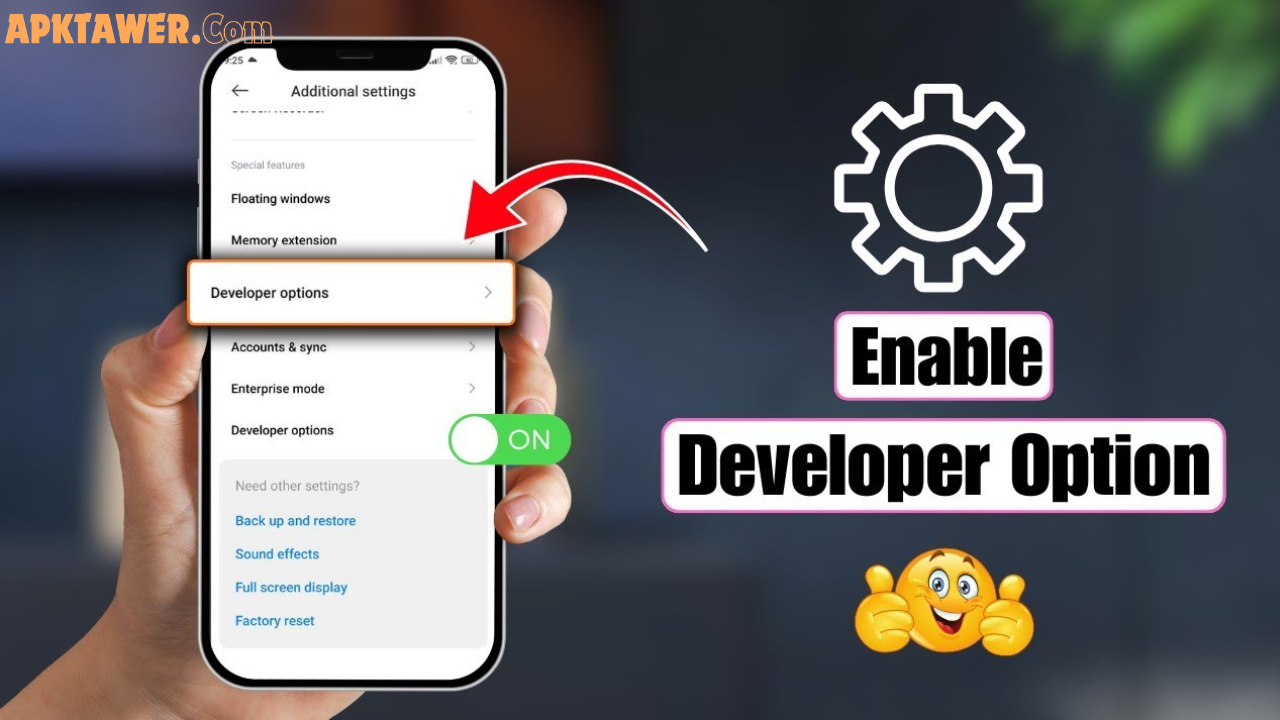
This hidden trick makes the interface feel dramatically faster. Enable Developer Options first:
- Go to Settings > About phone.
- Tap Build number seven times.
- Go back to Settings > System > Developer options.
Now adjust:
- Set Window animation scale, Transition animation scale, and Animator duration scale to 0.5x (or Off for maximum speed). You’ll notice scrolling and switching apps feel instant. Changes are reversible—just set them back to 1x if you miss the smooth look.
6. Limit Background Processes
Stop apps from running invisibly and eating RAM. In Developer options, find Background process limit and set it to At most 3 or 4 processes.
7. Optimize Battery and Close Battery Hogs
Go to Settings > Battery > Battery usage to see which apps drain the most power. Restrict background activity for the worst offenders. Enable Adaptive Battery if available—it learns your habits and saves resources automatically.
8. Disable Unnecessary Widgets, Live Wallpapers, and Auto-Sync
- Long-press your home screen → remove widgets you rarely use.
- Switch to a static wallpaper instead of live ones.
- In Settings > Passwords & accounts, turn off auto-sync for accounts you don’t check constantly.
9. Wipe the System Cache Partition (Advanced but Safe)
This clears system-level junk without deleting your files. Restart into Recovery mode (usually Power + Volume Down—check your model) → select Wipe cache partition → reboot.
Comparing Built-In Methods vs Other Approaches
Built-in settings (like the ones above) are the safest and most effective for most people—no apps needed. Third-party “cleaner” tools often promise more but can actually drain battery or cause issues. A factory reset is powerful but should be a last resort because it erases everything (back up first!). These built-in tweaks give 80–90% of the benefit with zero risk.
Pros and Cons of Speeding Up Your Phone This Way
Pros:
- Completely free and reversible.
- Works on any Android phone in 2026.
- Immediate results you can feel.
- Improves battery and storage too.
Cons:
- Some tweaks (like animations) are visual only—they don’t add raw processing power.
- You’ll need to repeat basic maintenance every few months.
- Very old hardware (5+ years) may still feel limited even after optimization.
Practical Tips and Best Practices
- Keep at least 15% storage free at all times.
- Make a 5-minute weekly routine: restart + clear cache.
- Every month, review your app drawer and storage.
- Use dark mode and Data Saver when possible—they save power and reduce background work.
- If your phone still feels slow after these steps, check for overheating or a failing battery at a service center.
FAQs
1. Will clearing cache delete my photos or app data? No—cache only removes temporary files. Your personal data stays safe.
2. Do I need to enable Developer Options permanently? No. You can leave them on or turn them off anytime. The animation tweaks stay active either way.
3. How often should I update my phone? Check for updates monthly. New Android versions in 2026 often include big performance improvements.
4. Is it safe to limit background processes? Yes, especially if you have 6 GB RAM or less. Most users notice better speed without missing notifications.
5. What if these steps don’t help? Try safe mode to test if a specific app is the problem, or contact your phone manufacturer for model-specific advice.
Conclusion
Speeding up your slow Android phone in 2026 doesn’t require fancy tools or a new device—just a few smart, built-in tweaks. By restarting regularly, clearing clutter, reducing animations, and staying updated, you can bring back that smooth, responsive feel you loved when the phone was new.
Start with the first three steps today—you’ll probably notice a difference in minutes. Your phone will thank you with faster performance and better battery life for months to come.
Try these tips right now and enjoy a snappier Android experience. Your future self (and your thumbs) will appreciate it!